Can a Broadcom single-port 200G network adapter be configured to support 1-to-2 or 1-to-4 breakout output modes
Q: Can a Broadcom single-port 200G network adapter be configured to support 1-to-2 or 1-to-4 breakout output modes
A:Yes. You can configure port breakout modes either via the BIOS Setup Utility (recommended) or using the Broadcom ”niccli” Command-Line Tool within the operating system if BIOS options are unavailable.
Method 1: Configuring Breakout Mode via BIOS Setup (Recommended)
1. Access Broadcom NIC Settings:
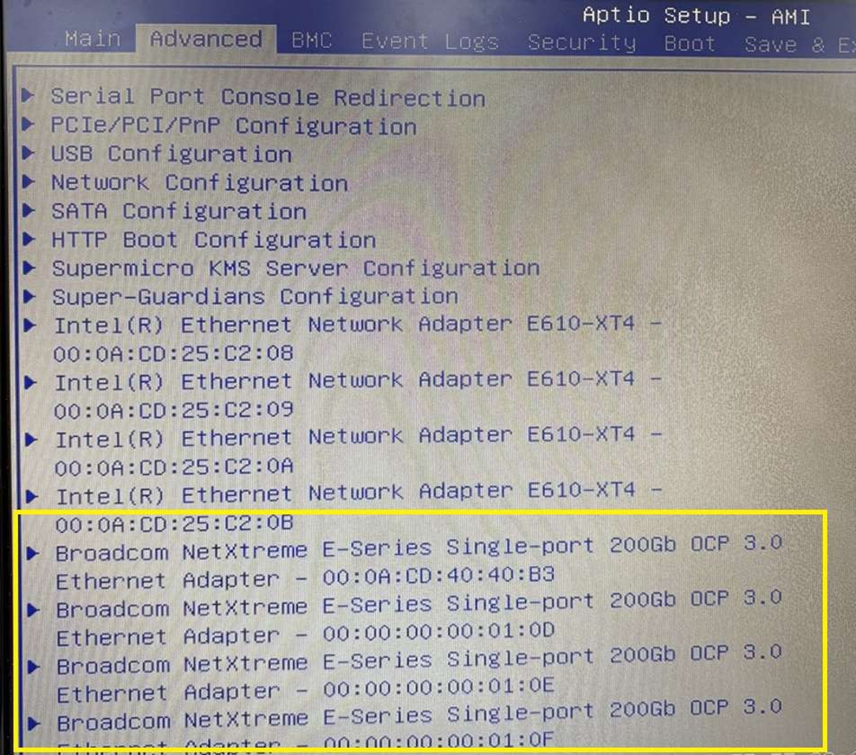
- Enter the BIOS Setup Utility and navigate to the Advanced tab.
- Select your Broadcom NIC (e.g., Broadcom NetXtreme E-Series
Single-port 200Gb OCP 3.0 Ethernet Adapter) and press Enter. (Note:
The exact menu location may vary depending on the BIOS version.)
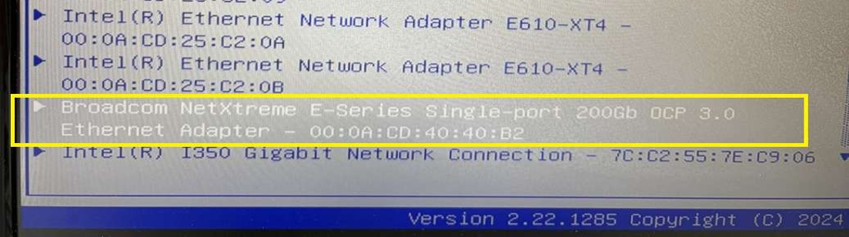
2. Open Device Configuration:
- Select Device Configuration Menu and press Enter.
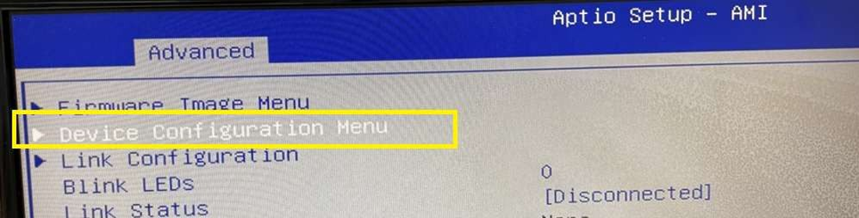
3. Configure Port Operation Mode:
- Select Port Operation Mode.
- Choose Breakout 1 port to 2 or Breakout 1 port to 4 based on your setup requirements.
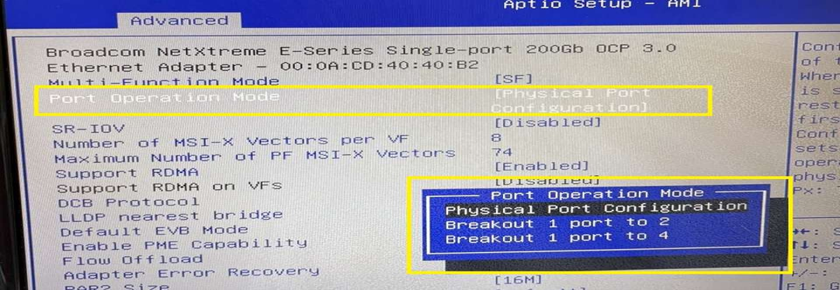
4. Save Settings:
- Navigate to the Save & Exit menu, select Save Changes (or press F4), and exit BIOS.
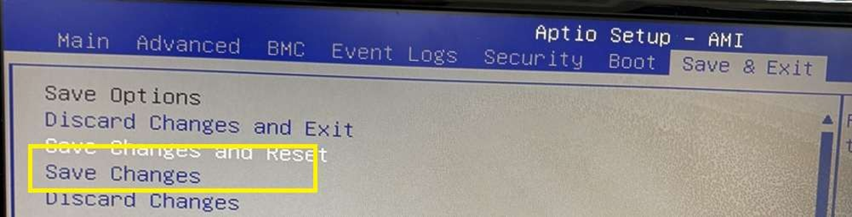
5. Cold Reboot & Verification:
- Power off the system completely (cold reboot) and turn it back on.
- Re-enter BIOS > Advanced and check if the expected MAC addresses for each breakout port are displayed correctly
Method 2: Configuring Breakout Mode via Broadcom niccli Tool
If the BIOS menu does not provide breakout settings, use the official Broadcom niccli tool in your OS environment.
1. Download the Tool:
- Download niccli for Windows/Linux from
the official Broadcom support website.
2. Locate the Adapter:
- Open Command Prompt or Terminal with Administrator / Root privileges.
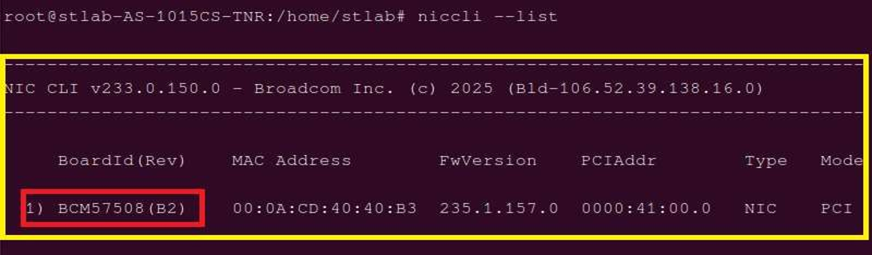
- Navigate to the niccli directory and list available network adapters: niccli_x64.exe –list
- Identify your Broadcom adapter index from the list (e.g., Index 1 for BCM57508).
3. Set Port Operation Mode:
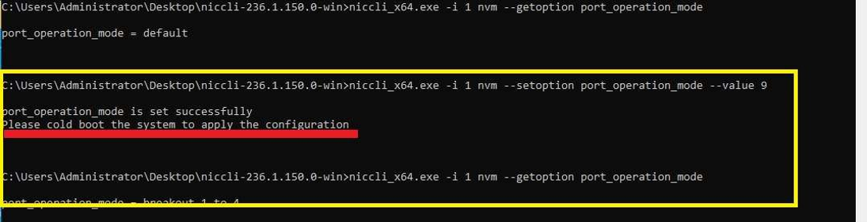
Execute the following command to set the breakout mode (replace -i 1 with your adapter index):
- niccli_x64.exe -i 1 nvm --setoption port_operation_mode --value 9
- Value 8: Breakout 1 to 2
- Value 9: Breakout 1 to 4
- After the command completes successfully, power off the system completely (cold boot) to apply the configuration.
4. Verify Configuration:
- Boot back into the OS, open Command Prompt (as Administrator), and run:
- niccli_x64.exe -i 1 nvm --getoption port_operation_mode
- Confirm that the command returns:
- port_operation_mode = breakout 1-to-4 (or breakout 1-to-2).
